Pragmata PC Performance Guide: Ray Tracing, Steam Deck & Best Settings
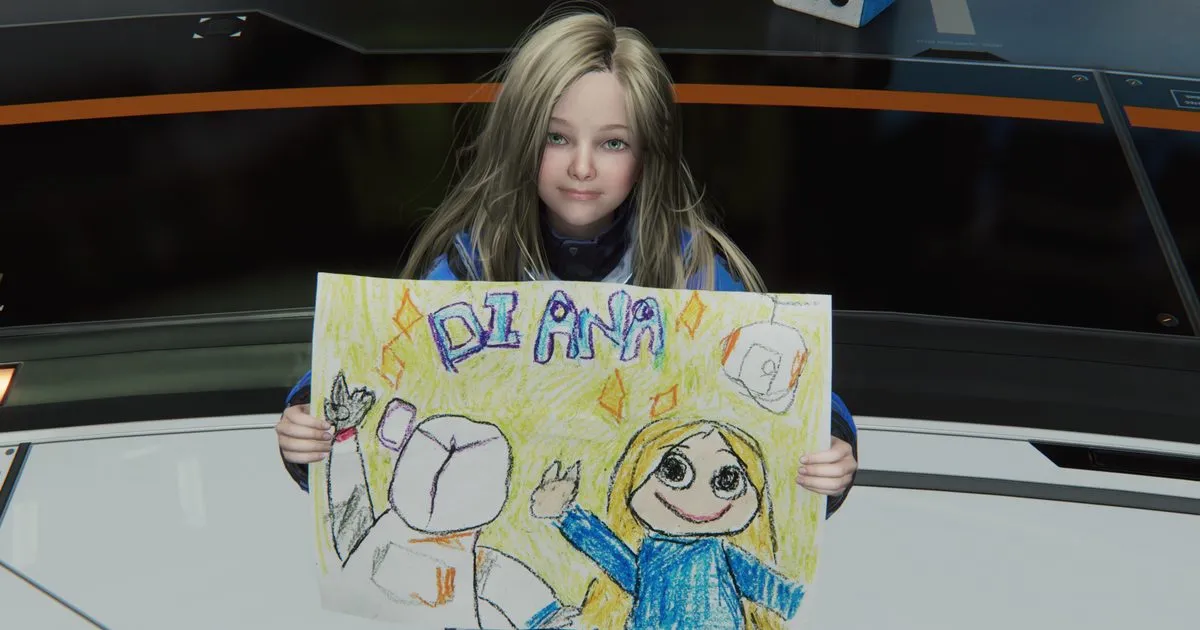
Looking to squeeze smooth frames and clean visuals out of Pragmata on PC? This guide breaks down the best settings for a range of hardware, explains when ray tracing is worth it (and when it isn’t), and covers practical tweaks for 1080p, 1440p, and 4K, plus a Steam Deck setup that actually feels good to play. Whether you’re chasing cinematic lighting, competitive responsiveness, or a quiet handheld session on the couch, you’ll find clear, no-nonsense recommendations below.
Why Pragmata runs well on so many PCs Capcom’s modern engine chops are on full display here. Pragmata scales smartly across hardware, and its heavier effects are largely opt-in. That’s a gift for anyone not running a space-heater GPU. A few principles underpinning this guide:
- Upscaling is your friend. DLSS and FSR (and their “Native AA” flavors when available) buy back performance with minimal softness on Quality modes.
- Regular ray tracing looks great and is surprisingly attainable. Path tracing, on the other hand, is for screenshots or curiosity, expect a big hit.
- Most visuals can sit on High without drama; the big wins come from dialing back a handful of expensive features.
Best settings by target resolution Use these as starting points, then nudge resolution scale or upscaler quality to taste.
1080p target (60–120 FPS feel)
- Upscaler: DLSS or FSR set to Quality
- Ray tracing: On, with medium-quality reflections/lighting if available
- Shadows: High
- Ambient occlusion: High
- Global illumination: High (or RT GI Medium if it exists as a separate toggle)
- Volumetrics/Fog: Medium (heavy in effects-heavy scenes)
- Screen-space reflections: Off if using RT; On (High) if not
- Textures: High to Ultra (ensure VRAM headroom)
- Anisotropic filtering: 16x
- Mesh/Geometry/Level of Detail: High
- Motion blur, film grain, chromatic aberration: Off (clarity and a few frames)
- Depth of field: Personal preference (Off for max clarity)
- V-Sync: Off (unless you need to cap tearing)
- Frame generation: Optional; only enable if your base FPS is already strong and latency is acceptable for you
1440p target (60–100 FPS feel)
- Upscaler: DLSS/FSR Quality or Balanced
- Ray tracing: On (medium-quality reflections/lighting)
- Volumetrics: Medium
- Shadows: High
- Ambient occlusion: High
- Textures: Ultra if VRAM allows; otherwise High
- Everything else as 1080p above
4K target (60 FPS feel or better on high-end GPUs)
- Upscaler: DLSS/FSR Quality (or Native AA if your GPU is very strong and you value image stability over raw FPS)
- Ray tracing: On if you can sustain it; otherwise stick to traditional GI + SSR
- Volumetrics: Medium
- Shadows: High
- Ambient occlusion: High
- Textures: Ultra (watch VRAM)
- Consider a mild frame cap (e.g., 60 or 90) for stability and acoustics
Ray tracing vs path tracing
- Ray tracing: Worth it. It meaningfully improves lighting, reflections, and scene depth without nuking frame rate like in older titles. If you’re near 60 FPS already, keep it.
- Path tracing: Not worth it for most players. The uplift in lighting consistency is real, but the cost is massive and can brighten dark spaces in a way that mutes the game’s mood. Keep this off unless you’re experimenting or taking captures on a monster GPU.
Upscaling and frame generation
- DLSS vs FSR: Both look strong on Quality. DLSS can be a touch cleaner in motion on compatible GPUs, but FSR holds up very well, especially with sharpening under control.
- Quality vs Balanced: Start with Quality. Only drop to Balanced if you need a nudge across a performance threshold.
- Frame generation: Great as icing, not the cake. Only enable when your native (non-FG) FPS already feels responsive. If gameplay starts to feel floaty, turn it off.
Suggested builds and expectations
- Older mid-range (think prior-gen x60/RX xx50–xx60 class): 1080p with Quality upscaling, High settings, RT on Medium, 60ish FPS is realistic with careful tuning.
- Modern mid-range (current x60/RX 7x00/7x50 tiers): 1080p High with RT or 1440p High without RT are both comfy; add RT at 1440p with upscaling if you’re okay hovering near 60–75 FPS.
- Upper mid/high-end (x70–x80 class or recent flagship Radeons): 1440p with RT is easy; 4K with RT + Quality upscaling is within reach. Consider a light frame cap to tame spikes and fans.
Steam Deck settings that feel good The Deck can run Pragmata, but you’ll want to build around a stable frame-time more than raw FPS.
- Refresh rate: 40 Hz
- Frame cap: 40 FPS
- TDP: Stock is fine; avoid aggressive under-volting until you’ve tested stability
- In-game preset: Low/Minimum as a base, then:
- Upscaler: FSR set to Performance or Balanced (experiment per area)
- Textures: Medium (watch VRAM; if stutter, drop to Low)
- Shadows: Low
- Ambient occlusion: Off or Low
- Volumetrics: Low
- Screen-space reflections: Off
- Motion blur/film grain/chromatic aberration: Off
- Depth of field: Off (clarity on the small screen)
- Per-game proton tweaks: Keep defaults unless you’re troubleshooting. Shader compilation is reasonably quick, let it finish after fresh installs or driver updates.
- Expectation: 40 FPS in quieter spaces, dipping into the 30s during heavy effects. Playable with good feel, especially with gyro aiming or aim assist enabled.
High-impact settings to change first If you’re a “set it and forget it” player, tweak in this order:
- Upscaler mode and quality (DLSS/FSR Quality is the biggest easy win)
- Volumetrics/Fog (Medium → Low if needed)
- Ray traced reflections/lighting (reduce to Medium, or disable reflections first)
- Shadows (High → Medium)
- Screen-space reflections (Off if RT is on; On if RT is off)
- Motion blur, film grain, chromatic aberration (turn these off for free clarity)
- Depth of field (Off for responsiveness and consistency)
Display and latency tips
- V-Sync: Off for low latency unless tearing is unbearable. If you need sync, try driver-level Fast Sync/Enhanced Sync.
- Frame cap: A gentle cap 2–3 FPS below your monitor’s max can smooth out frame-time hitching.
- Reflex/Anti-lag: Enable your GPU vendor’s latency reducer if available.
- Controller feel: Turn off extra post-processing and try a slight deadzone reduction for snappier stick aim.
Troubleshooting stutters and oddities
- VRAM pressure: If you see hitching during camera pans, drop texture quality one notch and relaunch.
- Shader precompilation: Let it finish after updates; it saves you from mid-mission stutters.
- Drivers: Update to the newest GPU drivers before big play sessions; roll back only if a fresh driver introduces issues.
- Background apps: Close overlays, RGB suites, and browser tabs chewing CPU time.
- Preset quirks: If changing presets re-enables options like V-Sync or frame generation, set your preferred preset once, then manually toggle display and advanced options afterward and save.
Quick reference “Best Balanced” setup (1080p and 1440p)
- 1080p: High preset baseline, DLSS/FSR Quality, RT On (medium-quality reflections), Volumetrics Medium, SSR Off, motion blur/film grain/CA Off. Expect smooth 60+ on modern mid-range GPUs.
- 1440p: High preset baseline, DLSS/FSR Quality or Balanced, RT On with medium-quality reflections (or Off if you prefer extra headroom), Volumetrics Medium, SSR per your RT choice, post effects Off. Aim for a stable 60–90, cap as desired.
Final word Pragmata is the rare big-budget PC release that rewards a light touch: keep the pretty stuff on, trim the truly heavy bits, and let upscaling carry the load. Ray tracing earns its keep; path tracing can stay in the lab. On desktops, you’ll hit a clean, consistent 60+ with the right toggles. On Deck, a 40 FPS target with sensible Low settings feels better than you might expect. Tinker a little, lock your frame-time, and enjoy the view.